Your Application Built with AI.
Describe your idea. Review the plan. Deploy. Start with AI and bring your containers, databases, and configuration together.
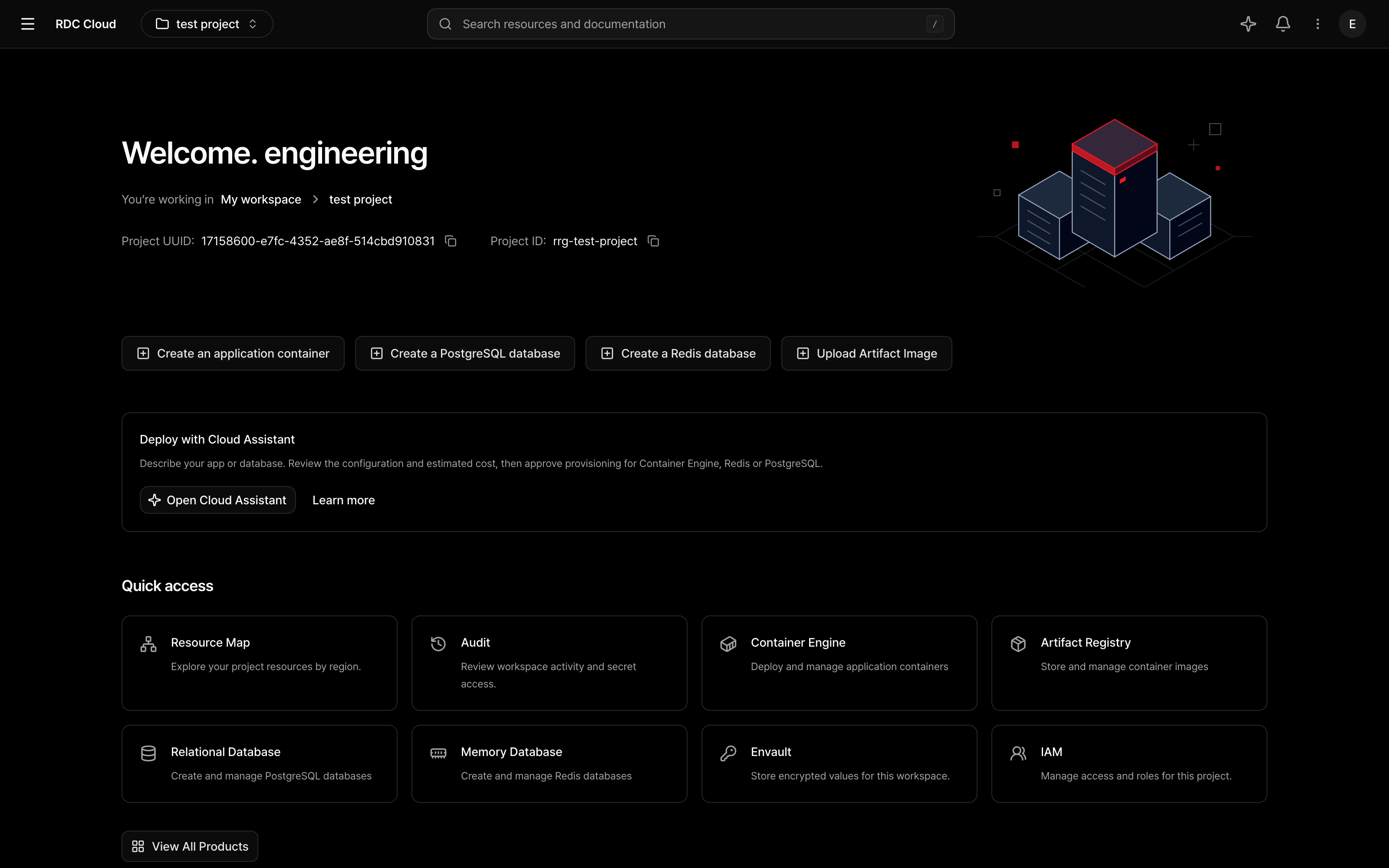
Everything you need to build
The resources behind your next application.
Run your stack.
Bring the stack you love. Deploy it as a container.
Package your web app or API with the runtime it needs. Bring your image, configure its HTTP port, environment variables and storage, then deploy with Container Engine.
Start deployingTechnology logos link to their projects. No affiliation or endorsement is implied. Logo credits



Build & Deploy with AI.
Describe what you need. Review the plan. Deploy with confidence.
Tell Cloud Assistant about your application or database. Review its proposed configuration and estimated cost, then approve provisioning when you’re ready.
- 01Request
- 02Review
- 03Deploy
- 04Ready
Deploy an nginx container named hello-world on port 80.
Illustrative workflow. No resources are created. Timing is shortened; actual pricing is shown in Console.
- 01
Describe & Configure
Describe your application or database in your own words. Get a proposed configuration for your project.
- 02
Review & Deploy
Review the configuration and estimated cost. Provisioning starts only after your approval.
- 03
Ask & Manage
Ask about project resources and get help with supported operations, including container restarts.
Everything your application needs.
From the image you deploy to the data and configuration it runs on. Keep the foundations of your application together.
From an image to a running service.
Deploy applications from container images. Configure domains, environment variables, and health checks, then inspect deployments and live logs in the same Console.
- Domains, environment variables, and persistent volumes
- Deployment history, logs, and web terminal
- CPU, memory, and network metrics
registry / api:latest- 01Select image
- 02Configure runtime
- 03Deploy and operate
More services. A clearer picture.
Find resources, assign access, and trace changes. Bring the context of day-to-day operations into your project.
The same configuration. In your terminal.
Sign in to RDC CLI through your browser and link an Envault environment to your directory. Pass the configuration your local process needs when it starts.
Get started with the CLI$ rdc loginBrowser sign-in complete
$ rdc secret configureEnvault environment linked
$ rdc secret runtime -- npm run devApplication started with environment variables
Before you get started.
Make room for your next project.
From the first deployment to everyday operations, with RDC Cloud.